Data pipelines
In this project, a pipeline refers to a process that takes a Target and a
list of DataProduct objects as inputs, performs some process on the data
(which are usually FITS files), and produces some outputs. A process refers
to an instance of a pipeline for a particular target and set of input files.
Processes are run by selecting a number of data products on the target data
page in tom_education, and selecting the pipeline to run. Processes run
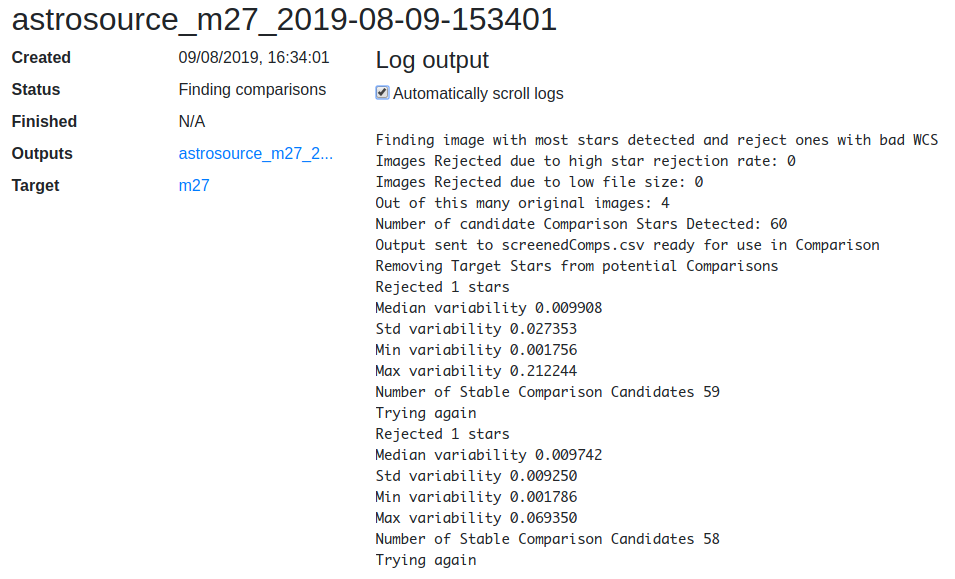
asynchronously, and a separate page shows the status and log output as it
progresses.
On completion, outputs from a process are saved in the TOM as either
DataProduct or ReducedDatum objects. See the section below on
Saving outputs for more details.
Defining a pipeline
Pipelines are defined by creating a sub-class of
tom_education.models.PipelineProcess somewhere within your project, and
referencing them from settings.py, e.g:
...
TOM_EDUCATION_PIPELINES = {
    # name: pipeline class. The name will be shown in the UI
    'My pipeline': 'my_project.pipelines.MyPipeline'
}
...
The following class serves as a minimal example showing the methods that must be defined.
from tom_dataproducts.models import DataProduct, ReducedDatum
from tom_education.models import PipelineProcess, PipelineOutput

class ExamplePipelineProcess(PipelineProcess):
    # Label used as a prefix for names of generated data products
    short_name = 'example'

    # Optional list of suffixes for input files. The process will fail if
    # trying to run with files that do not end in one of these suffixes.
    allowed_suffixes = ['.fits', '.fz']

    # Make this a proxy: we do not want this to be a concrete model (which
    # would use a separate DB table and require migrations)
    class Meta:
        proxy = True
        # app label is required if this class is defined outside of an app
        # listed in INSTALLED_APPS
        app_label = 'myapp'

    def do_pipeline(self, tmpdir):
        """
        This method does the actual work.

        ``tmpdir`` is ``pathlib.Path`` object for a temporary directory which can
        be used to write outputs and other temporary files.

        This method will return a sequence of PipelineOutput objects (or
        tuples) for the output files that should be saved in the TOM.
        """
        # The ``Target`` object is available as ``self.target``
        ra = self.target.ra
        dec = self.target.dec

        # The input files are available as ``self.input_files``. This is a Django
        # ``ManyRelatedManager`` object of ``DataProduct`` objects: use
        # ``self.input_files.all()`` to get the inputs as a list.
        for product in self.input_files.all():
            path = product.data.path
            # Do something with file...

        # Create some output files
        outcsv = tmpdir / 'my_output.csv'
        outcsv.write_text('data here')
        outpng = tmpdir / 'anther_output.png'
        outpng.write_bytes(b'PNG data here')

        return [
            PipelineOutput(path=outcsv, output_type=ReducedDatum),
            (outpng, DataProduct)  # Can output a tuple instead of PipelineOutput
        ]
Saving Outputs
Outputs are saved in the TOM as either DataProduct or ReducedDatum; the
definition of these models can be found in the tom_dataproducts source code.
DataProduct objects have a file field which can store arbitrary files. This
can be used for binary files such as FITS files and other images.
A ReducedDatum object represents a single piece of ‘reduced’ data, and stores
the value as a free-form text field. This can be used for text outputs such as
CSV, and plain text files.
To specify which output type should be used for each file, the
do_pipeline() method of a PipelineProcess class should return a list of
PipelineOutput objects (or tuples from which a PipelineOutput can be
instantiated). PipelineOutput is a namedtuple
class with the following fields
path: Apathlib.Pathobject for the file to saveoutput_type: EitherDataProductorReducedDatumtag: (Optional) A string value to use for thetagfield forDataProductobjects ordata_typefield forReducedDatum.
If at least one DataProduct output is produced, a new DataProductGroup is
created to hold these products.
Errors
To stop a process and mark it as a failure, raise a
tom_education.models.AsyncError exception:
from tom_education.models import AsyncError
...

class MyPipeline(PipelineProcess):
    ...
    def do_pipeline(self, tmpdir):
        raise AsyncError('Something went terribly wrong')
This will set the status field of the process to
tom_education.models.ASYNC_STATUS_FAILED, and the given error message will be
shown in the UI.
Status updates
For long-running pipelines, or ones with several steps, it may be useful to set
the status of a process as it progresses. For this, a PipelineProcess has a
status field which can be set to any string value. The PipelineProcess
must be saved after the status is changed with self.save(). This status
will be shown and updated in the UI on the page for the process.
To prevent repetition in the code when updating the status, performing some
task and saving, a context manager self.update_status is available:
def do_pipeline(self, tmpdir):
    with self.update_status('Doing the first thing'):
        # do something
        ...

    with self.update_status('Done that - now doing the second thing')
        # do something else
        ...
    ...
On successful completion of the process (that is, if do_pipeline() finishes
without raising a AsyncError), the status is set to
tom_education.models.ASYNC_STATUS_CREATED.
Log output
More granular updates can be given by logging messages with self.log():
def do_pipeline(self, tmpdir):
    with self.update_status('Doing something important'):
        self.log('first sub-step')
        self.log('second sub-step')
        ...
    ...
Log output is also shown in the UI on the page for a process.
Flags
Pipelines may be parametrised by a number of boolean parameters (‘flags’),
whose values are selected by the user when the process is scheduled and passed
as keyword arguments to the do_pipeline() method. To define flags, set the
flags attribute on the pipeline class:
class FlagDemo(PipelineProcess):
    # ``flags`` is a dictionary that maps flag names to their default values and
    # long descriptions
    flags = {
        'some_flag': {'default': True, 'long_name': 'Long name to be displayed in the UI'},
        'another_flag': {'default': False, 'long_name': 'Another flag'}
    }
    ...

    def do_pipeline(self, tmpdir, **flags):
        some_flag = flags.pop('some_flag')
        another_flag = flags.pop('another_flag')
        ...
    ...
Note that flag names should not contain whitespace.
Status and log page
The status and log output of a pipeline process can be viewed at
/pipeline/<PK>. Log output is updated every second, and can be scrolled
automatically. This page also provides links to the data product group
containing outputs.